Safely eject the USB stick from your computer to ensure the file is copied without errors.
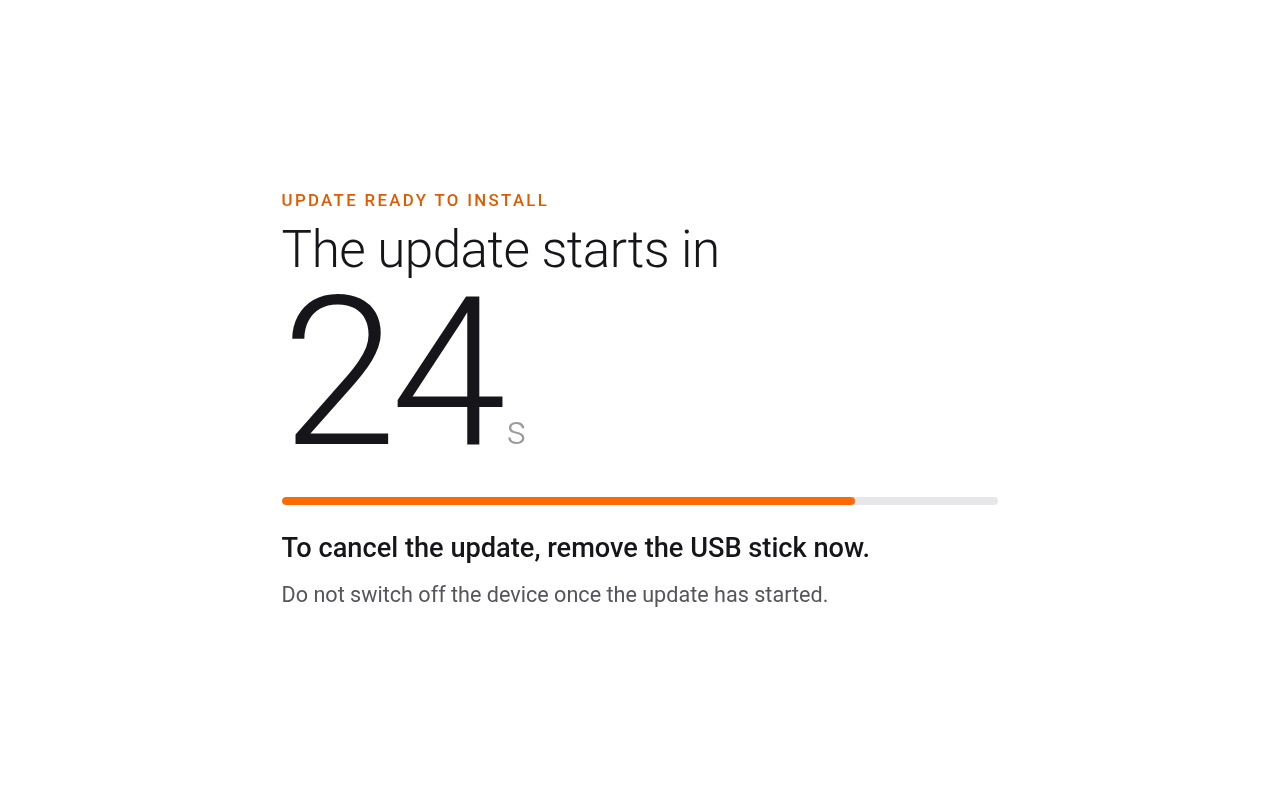
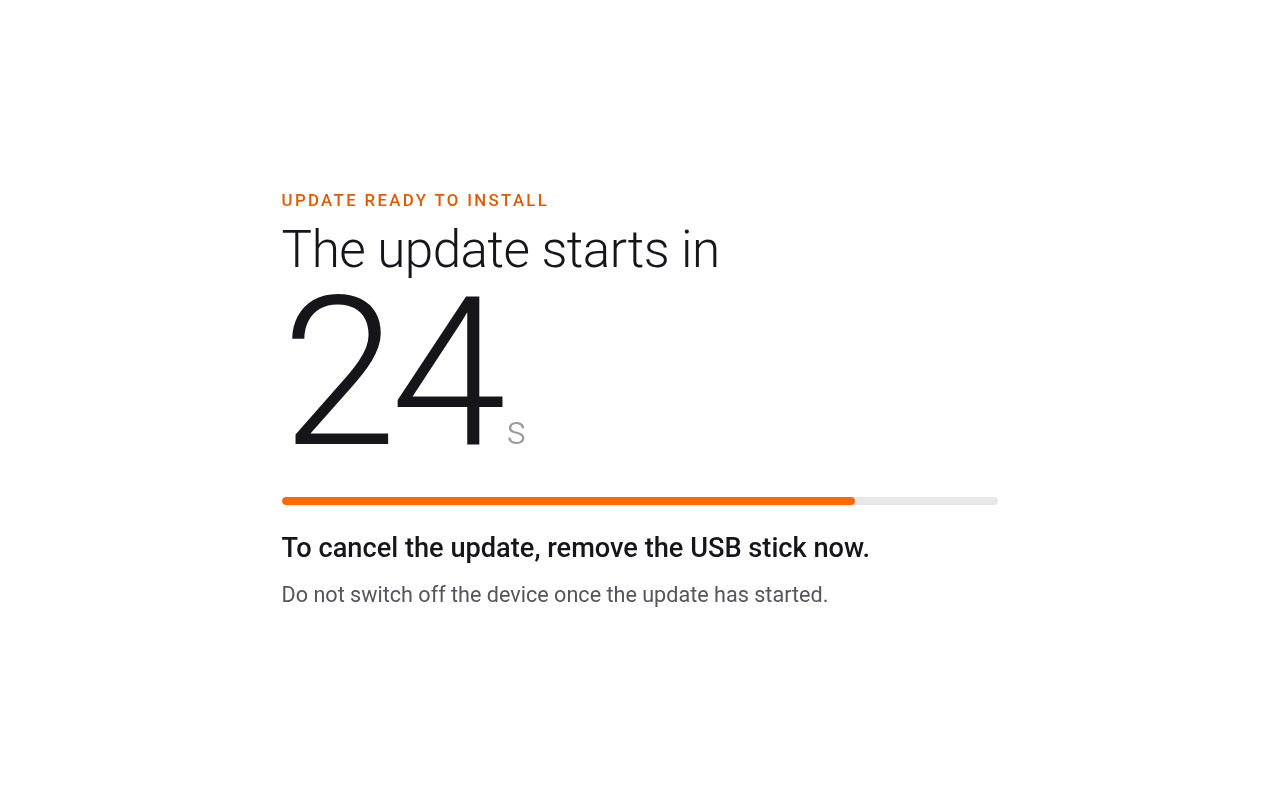
With the device in Idle state, insert the USB stick into the front USB port. Wait for update screen to appear, which will take up to 1 Minute. The screen shows "Update ready to install" and counts down 30 seconds before the update starts.
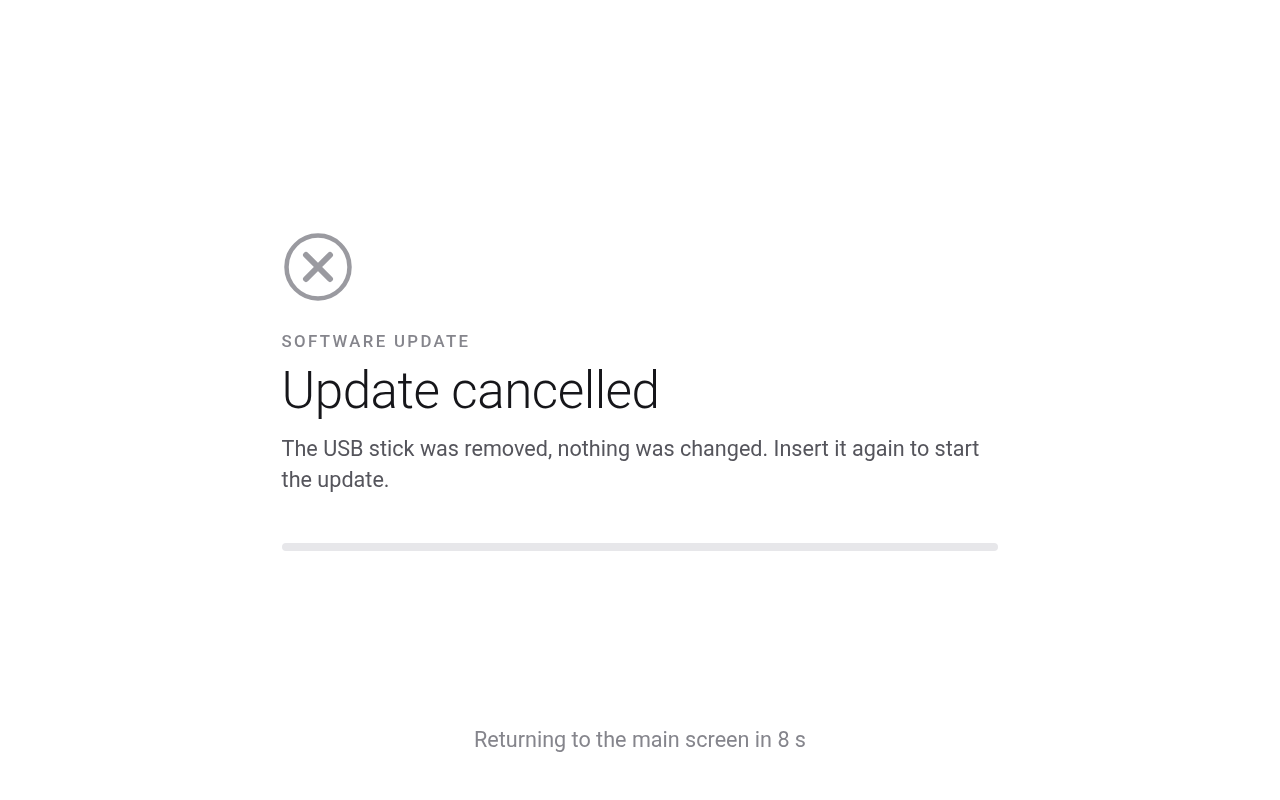
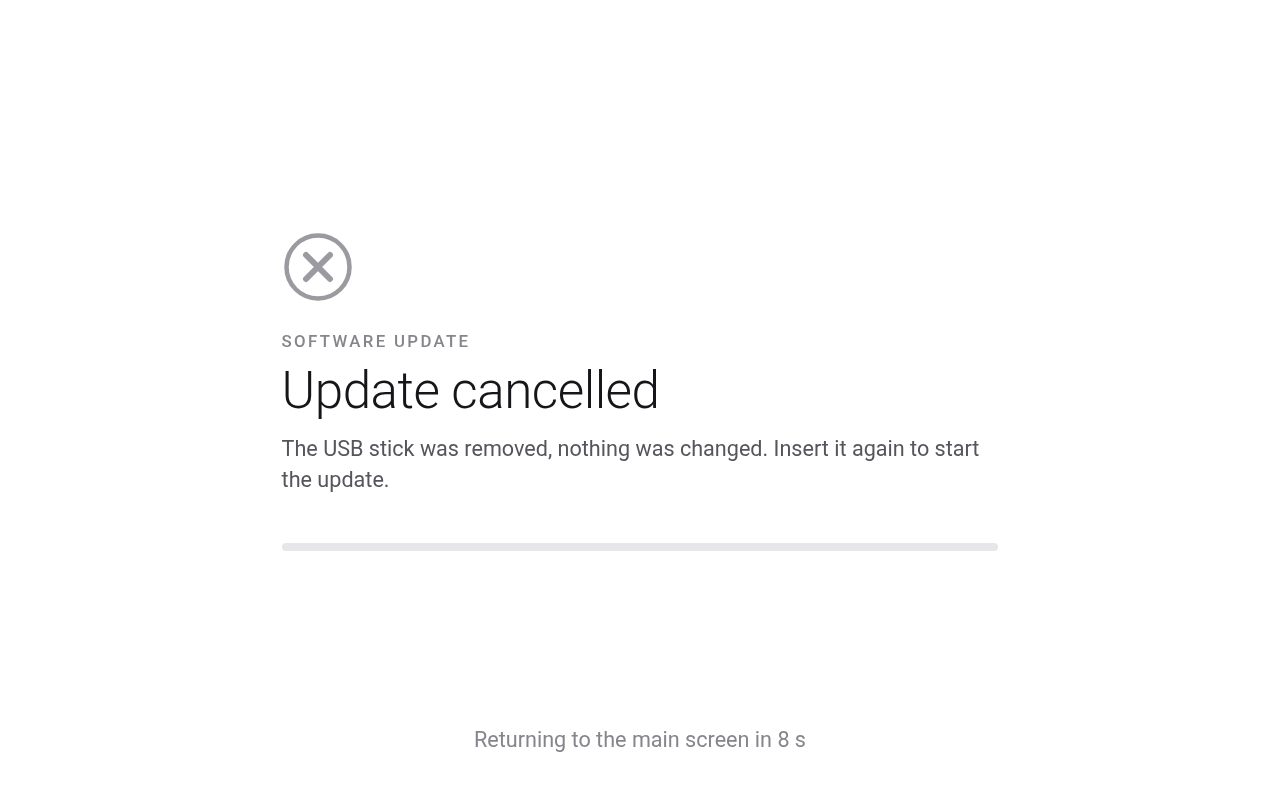
Note: To cancel the update, remove the USB stick while the countdown is running. Nothing on the device is changed: the screen shows "Update cancelled" and returns to the main screen after 10 seconds.
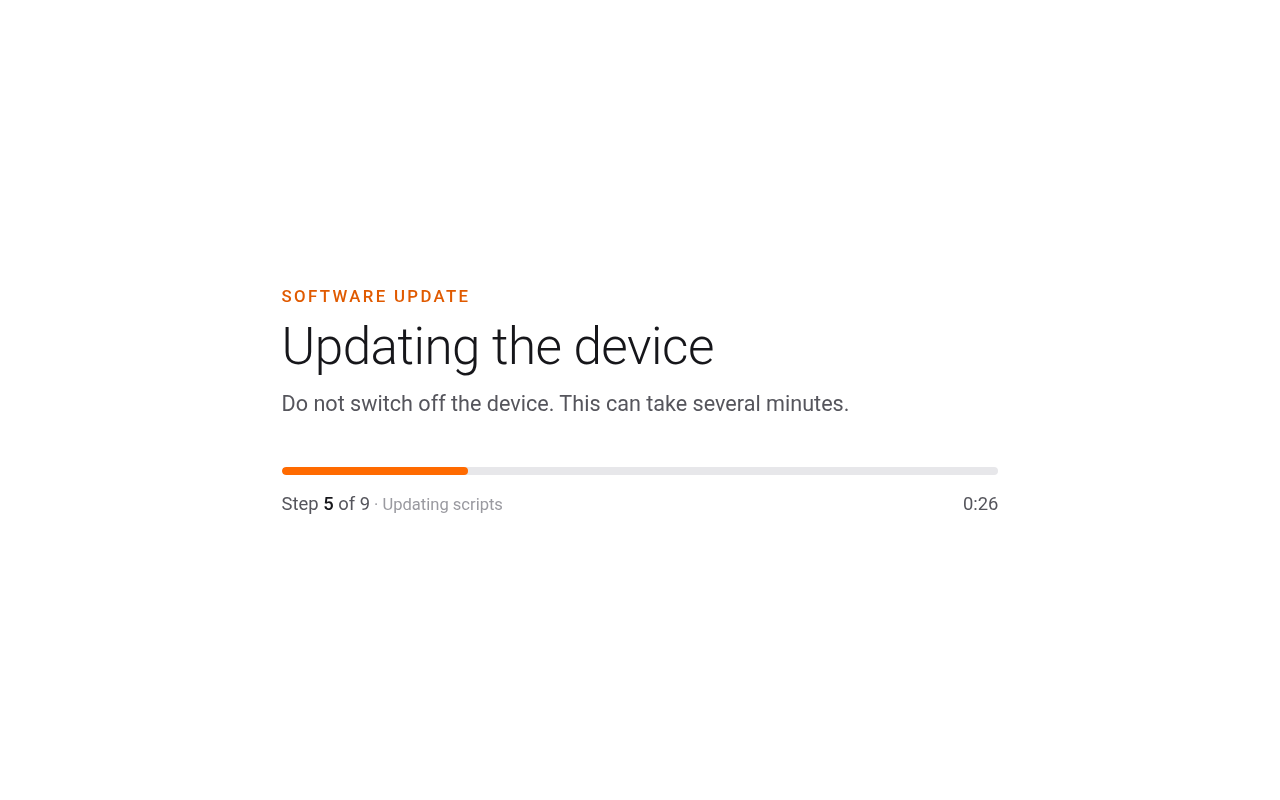
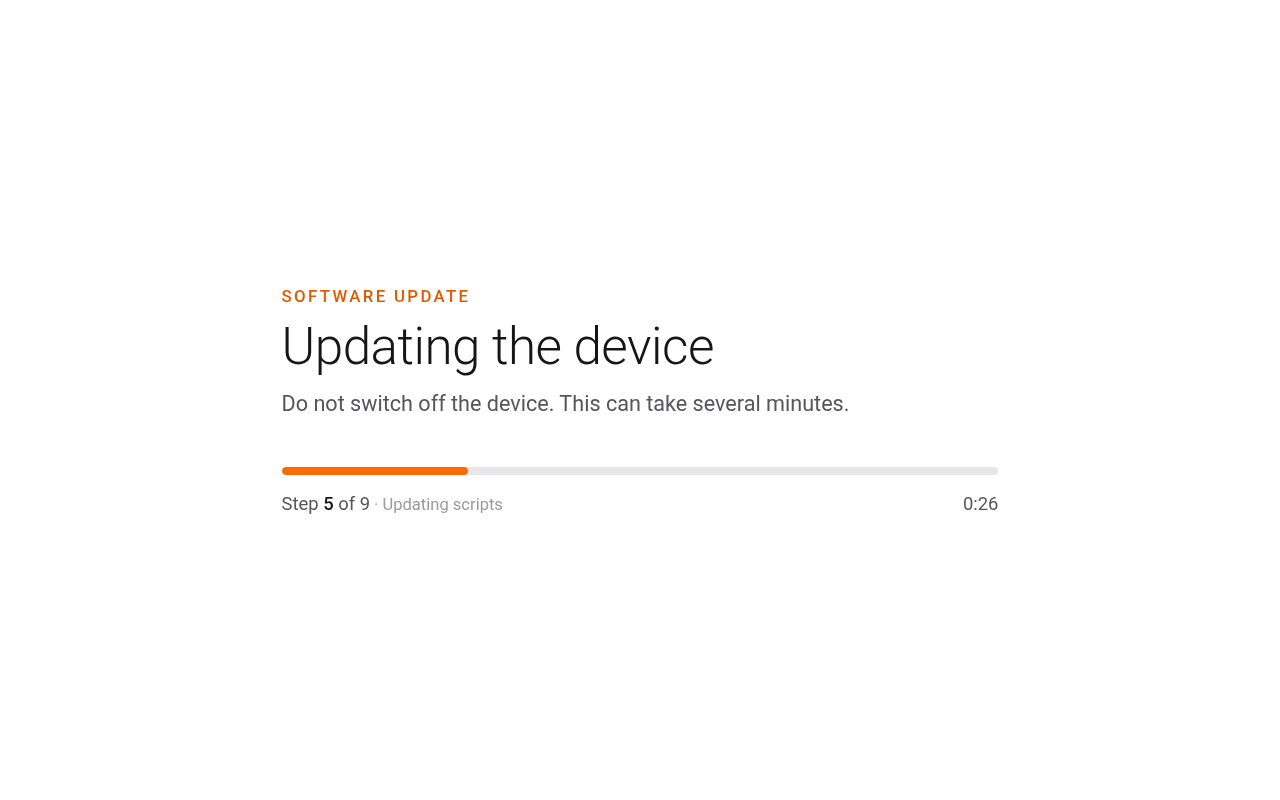
When the countdown ends, the update installs. The screen shows "Updating the device" with the current step and a progress bar.
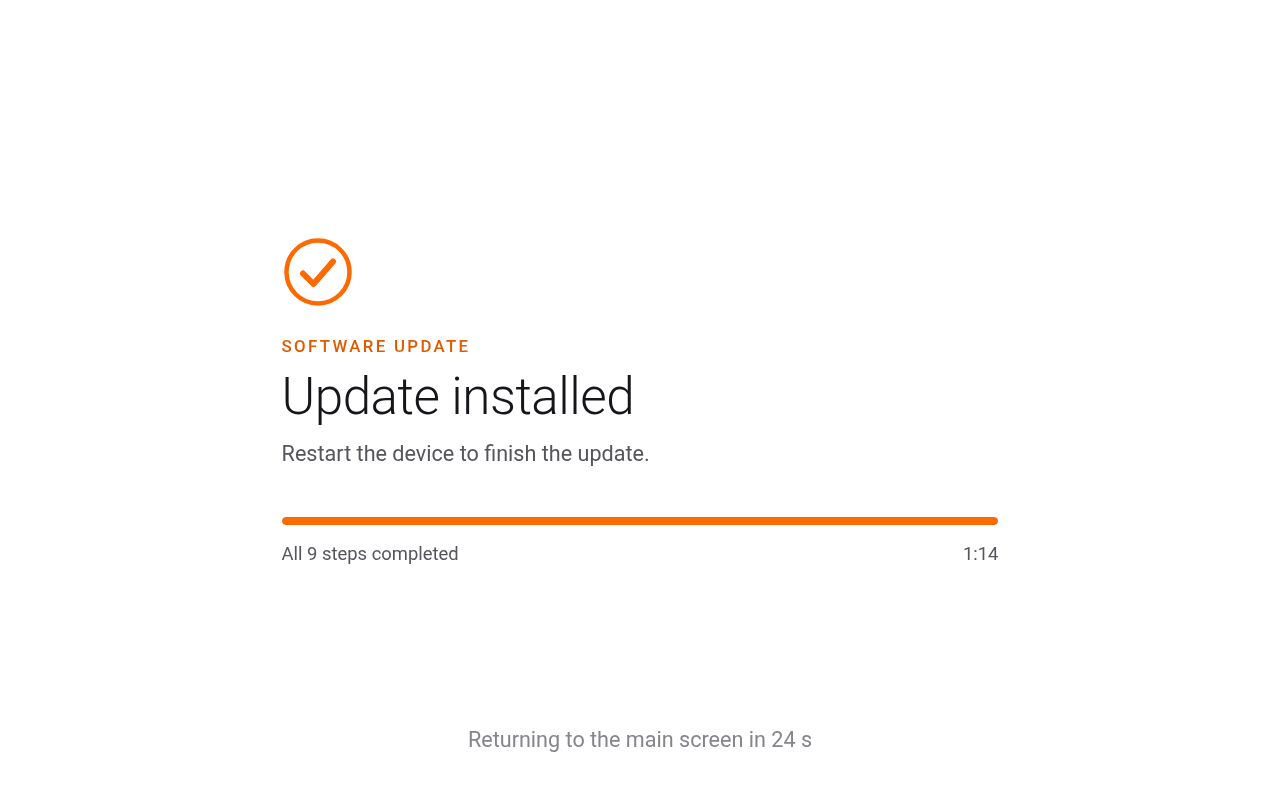
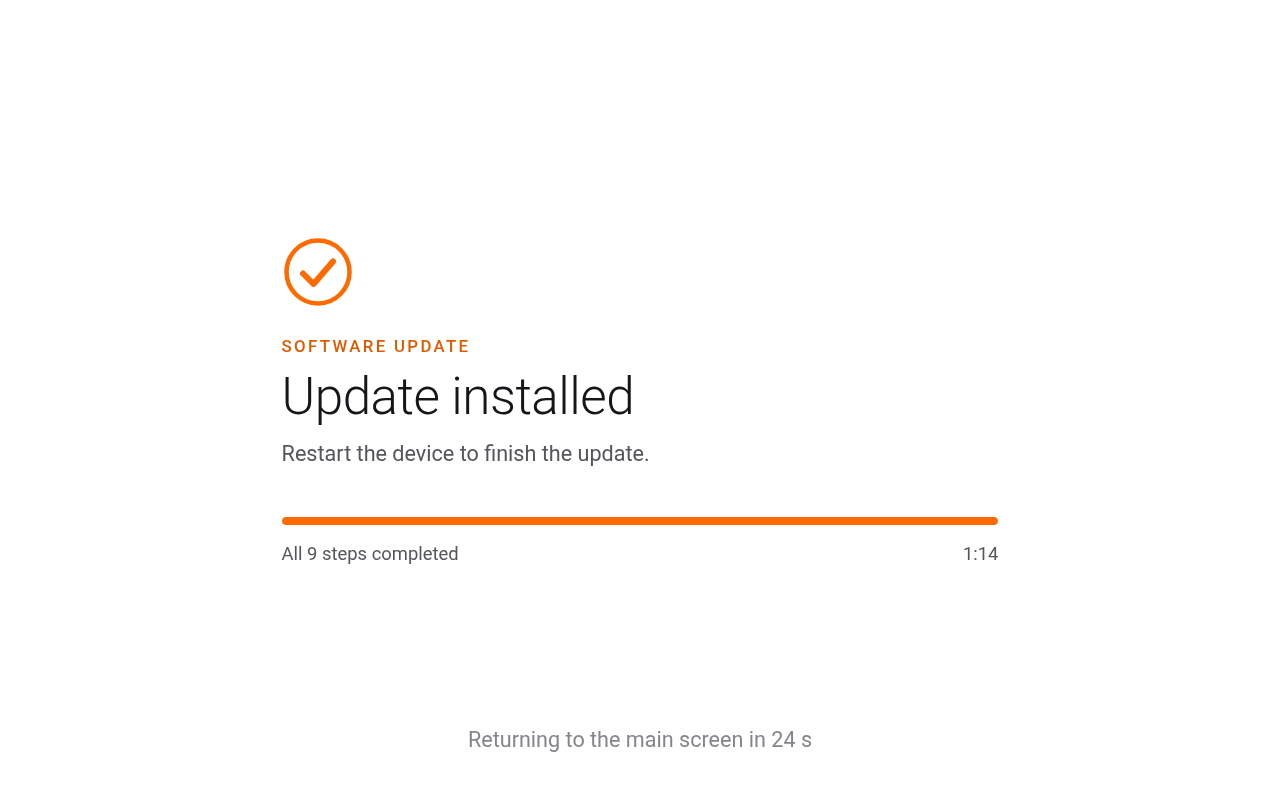
Note: Do not remove the USB stick or power off the device until "Update installed" appears. Interrupting the update may leave the device in an unusable state.
After the screen showed "Update installed", turn the device OFF.
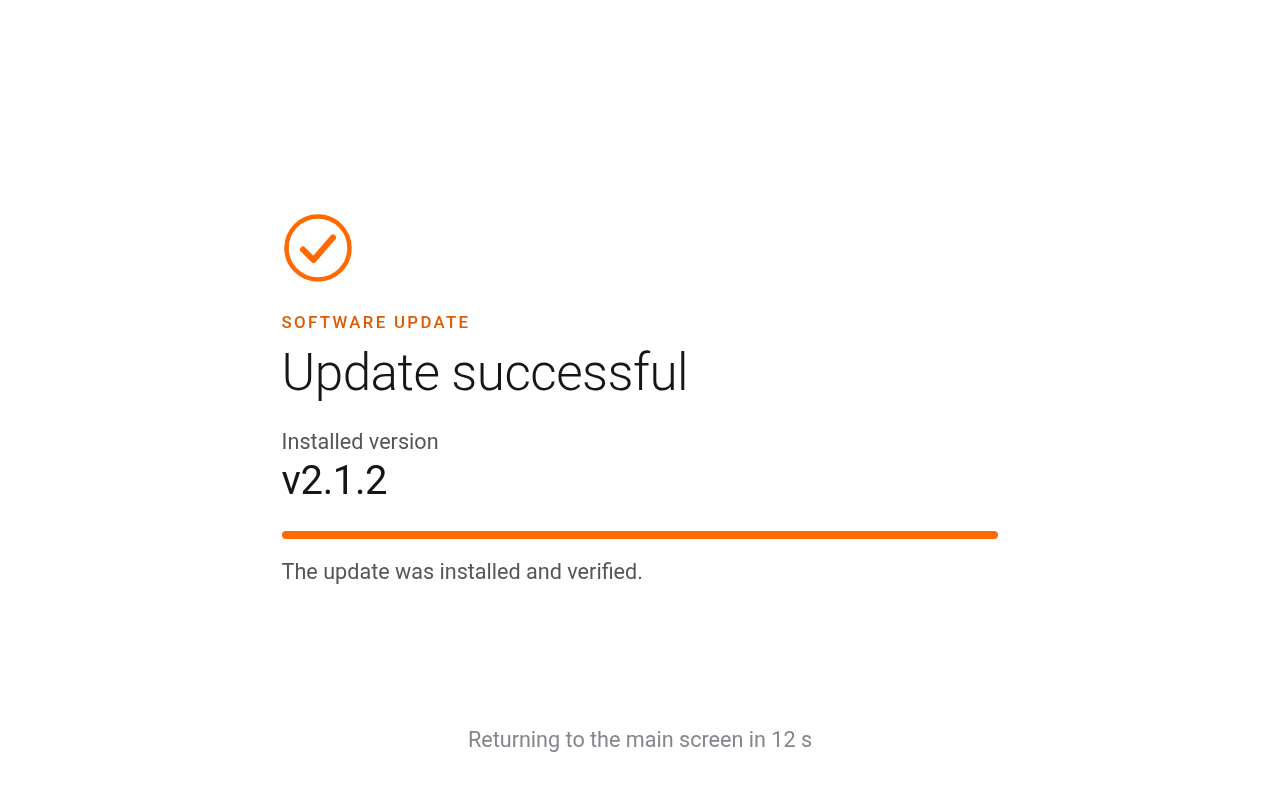
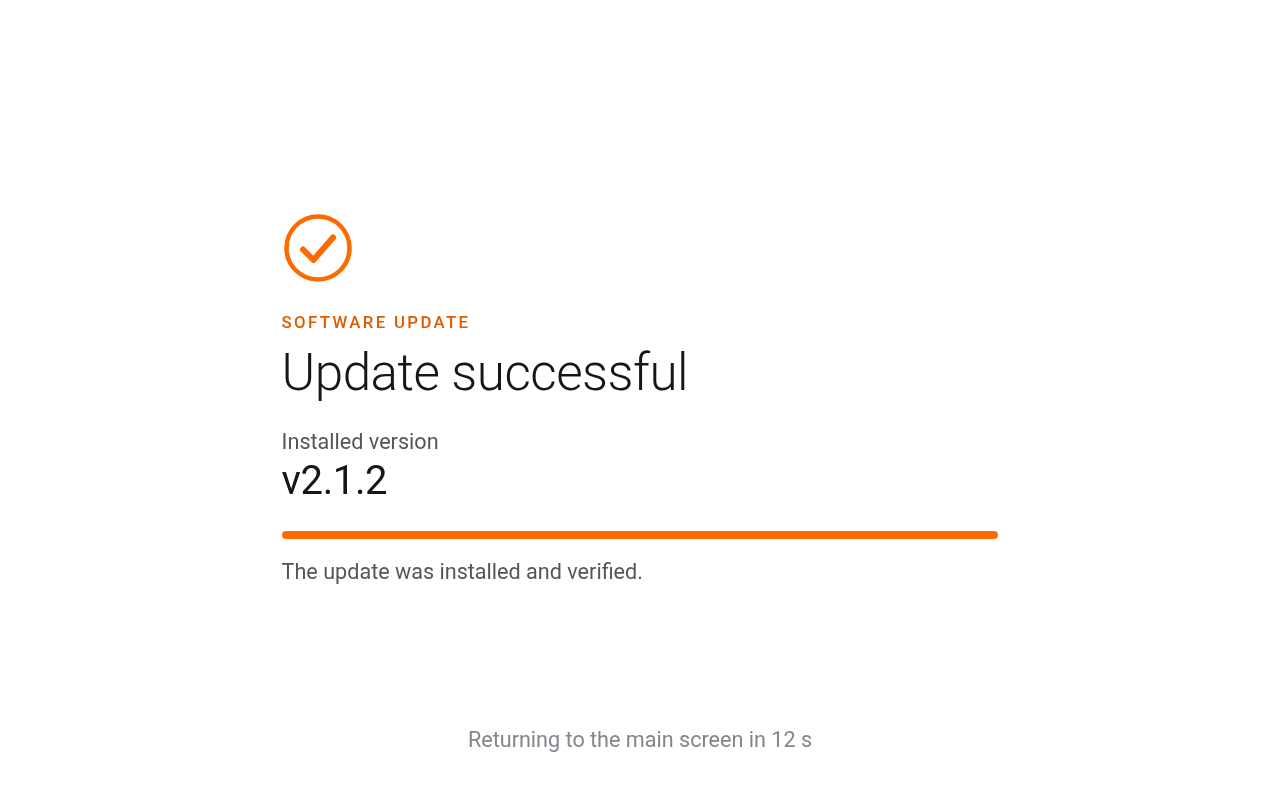
Remove the USB stick and turn the device back ON. After the boot-up sequence the screen shows "Update successful" with the installed version for 15 senconds.
If the update does not complete:
"Update cancelled": the USB stick was removed during the countdown. Nothing was changed. Insert the USB stick again to start the update from the beginning.
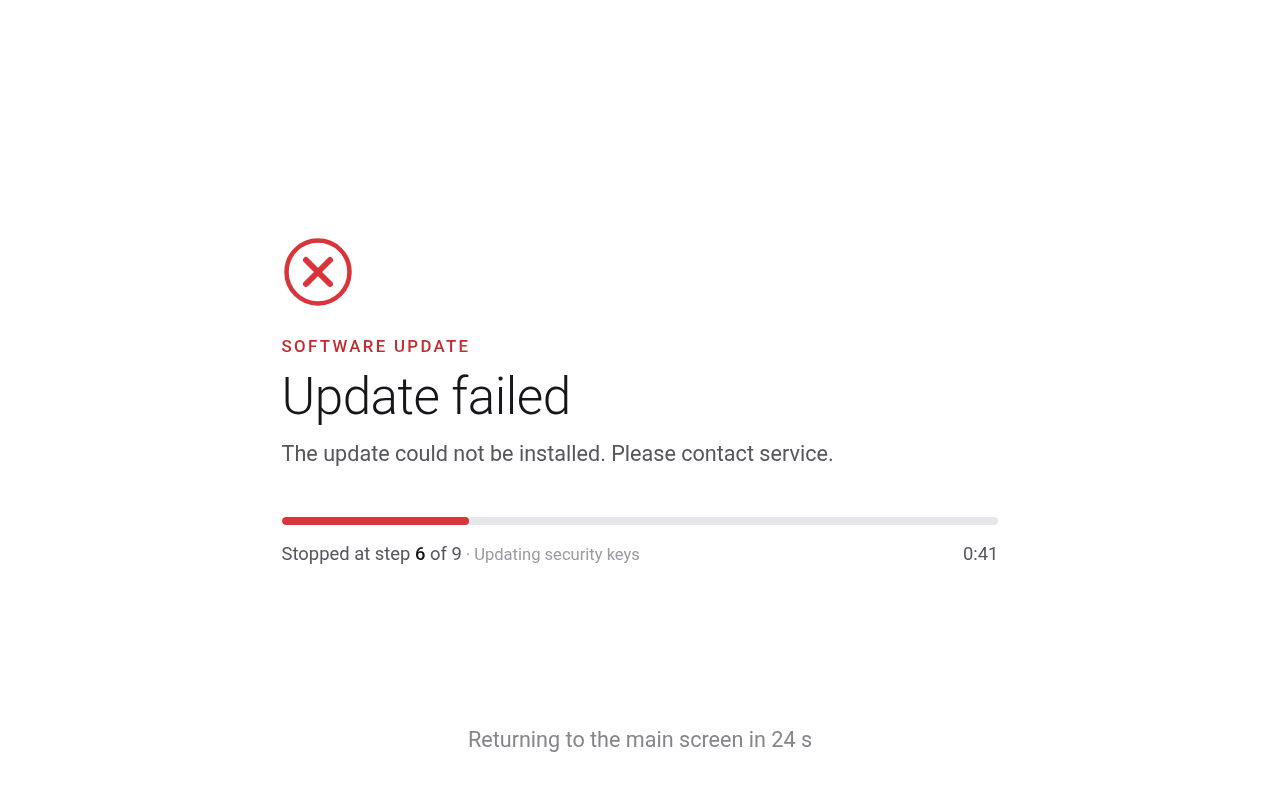
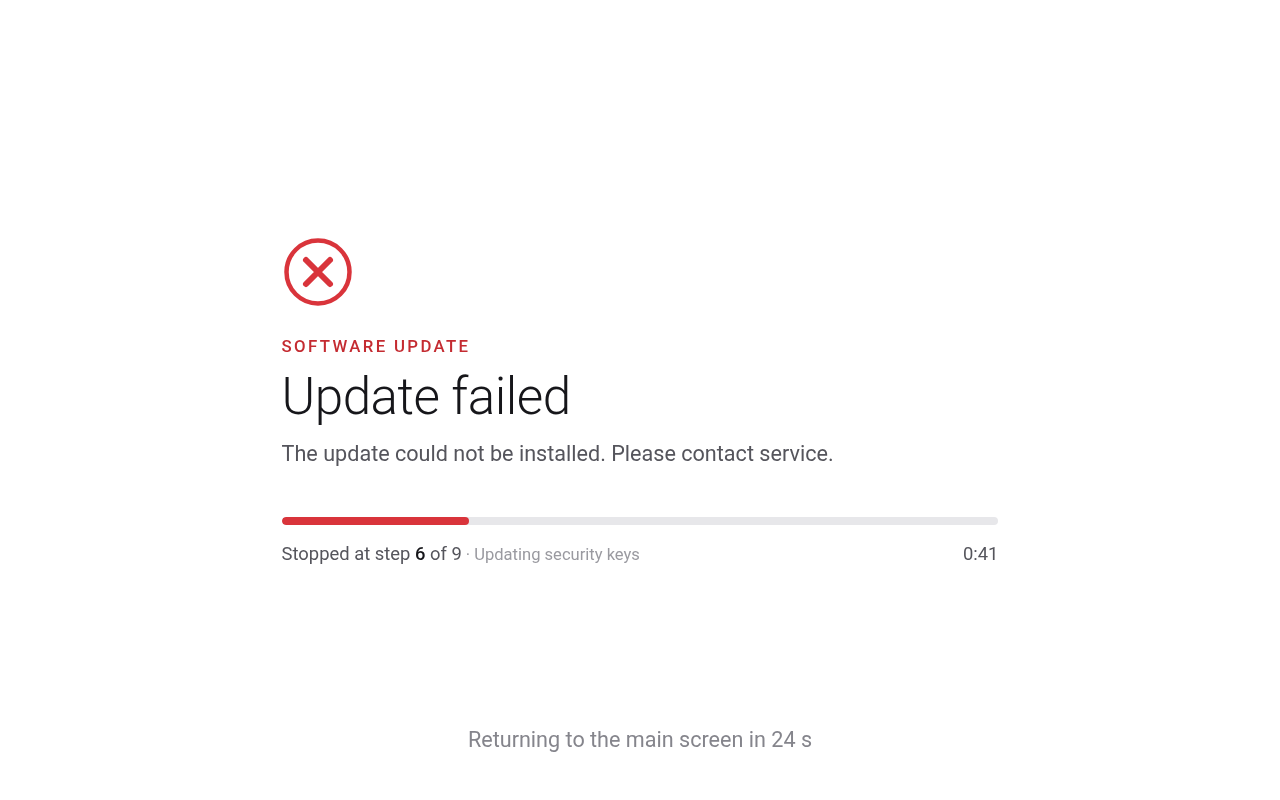
"Update failed": the update could not be installed. The screen shows the step where it stopped and returns to the main screen after 30 seconds. Please try again. If the Update keeps failing please note down the failed step and contact support@testo.bio